
BACK UP SQL SERVER TO WASABI
Wasabi's flat-rate pricing with no egress or API request fees makes it a popular choice for database backup storage, where you write daily and hope to read rarely – but want restores to be free when you need them. This tutorial covers the Wasabi-specific setup with SQL Backup Master: creating a bucket and access keys, and matching the destination to your bucket's storage region.
Step 1: Create a Wasabi bucket
Sign in to the Wasabi console and create a bucket for your database backups. Choose the storage region closest to your servers – Wasabi operates regions across North America, Europe, and Asia-Pacific (including Amsterdam, Frankfurt, London, Paris, Tokyo, Singapore, and Sydney). Note which region you pick: the destination's service endpoint must match it. The bucket must exist before configuring SQL Backup Master – the application will not create it for you.
Step 2: Create access keys
In the Wasabi console, open the Access Keys area and create a new key pair. Record both the access key and the secret key – the secret is only displayed at creation time. For tighter security, consider creating the key for a dedicated sub-user whose policy is limited to the backup bucket.
Step 3: Create the backup job
In SQL Backup Master, create a new backup job, connect to your SQL Server instance, and select the databases to protect. These steps are common to all destinations and are covered in detail in our Amazon S3 tutorial (Steps 3–5) – the process is identical here.
Step 4: Add the Wasabi destination
In the Destinations section, click Add and double-click Wasabi (S3). In the destination settings window, enter your access key, secret key, and bucket name.
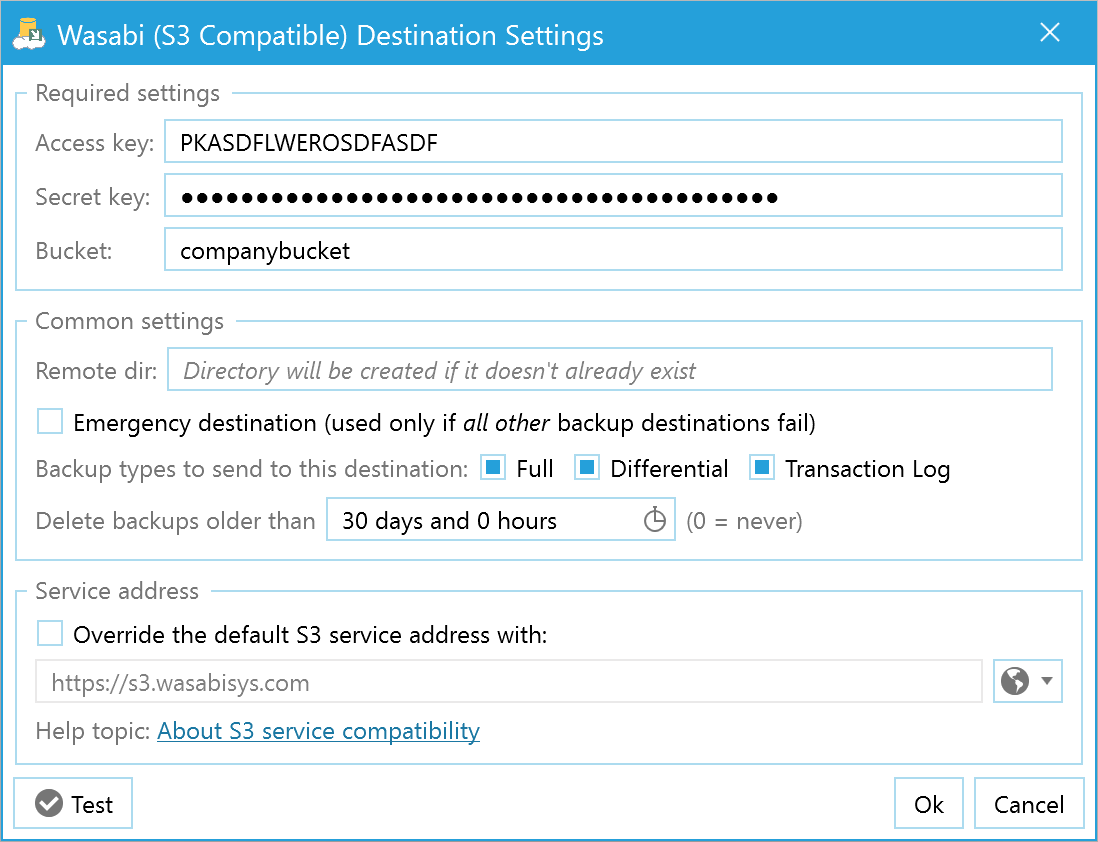
Then set the service address to match your bucket's region. By default the destination connects to US East 1 (https://s3.wasabisys.com); if your bucket lives elsewhere, click the region picker button in the Service configuration section and choose your region from the list – SQL Backup Master fills in the matching endpoint automatically. An endpoint that doesn't match the bucket's region is the most common cause of failed connection tests with Wasabi.
Click Test to verify the connection, then OK, and save the backup job.
Step 5: Schedule, run, and verify
Configure a recurring schedule if you'd like unattended backups, then run the job with Back up now. When it completes, review the job log and confirm the backup files appear in your bucket via the Wasabi console. Remember that restores from Wasabi incur no egress fees – a good reason to test your recovery path periodically.