
SCHEDULE SQL SERVER EXPRESS BACKUPS WITH SQL BACKUP MASTER
SQL Server Express is free, capable, and missing the one thing every production database eventually needs – a way to back itself up on a schedule. SQL Backup Master fills that gap. This guide explains why Express cannot schedule its own backups, compares the three common ways to solve it, and walks through setting up an automatic backup job step by step.
Why SQL Server Express cannot schedule its own backups
Every paid edition of SQL Server ships with SQL Server Agent, the service that runs jobs on a schedule. SQL Server Express does not include it – not in the base edition, and not in Express with Advanced Services. Maintenance Plans, the usual point-and-click route to scheduled backups, are built on SQL Server Agent and are therefore unavailable on Express too.
SQL Server Management Studio can still take a backup on demand, and a
BACKUP DATABASE statement works exactly as it does on any other edition. What is
missing is anything to run that statement at 2:00 AM on a Tuesday. The practical result is that
an Express instance will run for years without a single backup unless something outside SQL
Server triggers one.
Three ways to automate SQL Server Express backups
| Approach | What it involves | Trade-offs |
|---|---|---|
| Windows Task Scheduler plus a sqlcmd script |
Write a .sql or .bat file that calls sqlcmd, then schedule it as a Windows task under an account with rights to the instance. |
No extra software. You own the script, the retention and purge logic, the compression, the off-site copy, and the alerting – and a task that silently stops running gives you no warning. |
| PowerShell | Use the SqlServer module or a community toolset to script backups, then schedule the script. | More capable and more readable than a batch file, with the same ongoing maintenance burden and the same need to build retention and monitoring yourself. |
| SQL Backup Master (free edition) |
Point it at your Express instance, choose databases and destinations, set a schedule, and save. Backups run under a Windows service. | Scheduling, compression, retention, retry, notifications, and off-site upload are configuration rather than code. The free edition runs one scheduled job. |
The rest of this page covers the third option. If you would rather script it yourself, the command line interface lets Windows Task Scheduler control the timing while SQL Backup Master still handles the backup, compression, upload, and logging.
What the free edition includes
For a single Express instance, the free edition is usually sufficient on its own. It runs one scheduled backup job – and one job can back up every database on the instance, so that limit is rarely the constraint it sounds like.
Included at no cost: full, differential, and transaction log backups; scheduling; zip and 7-Zip compression; automatic cleanup of old backup files; failed-backup retry; email, desktop, and webhook notifications; logging and log viewing; simple database recovery; a basic command line interface; and backups to a local folder or NAS, Dropbox, FTP/FTPS/SFTP, WebDAV, or Box.
Requires a license: backup archive encryption, the Amazon S3, Azure Blob Storage, Backblaze B2, Wasabi, Google Cloud Storage, and IDrive e2 destinations, Google Drive and OneDrive, batch database restore, PowerShell cmdlets, and additional scheduled jobs. See the full feature comparison.
Step 1: Install SQL Backup Master
To begin, download SQL Backup Master and install it on the computer that hosts the instance of SQL Server Express that you'd like to back up. All versions of SQL Server Express from 2005 onward are supported by SQL Backup Master.
Step 2: Create a backup job
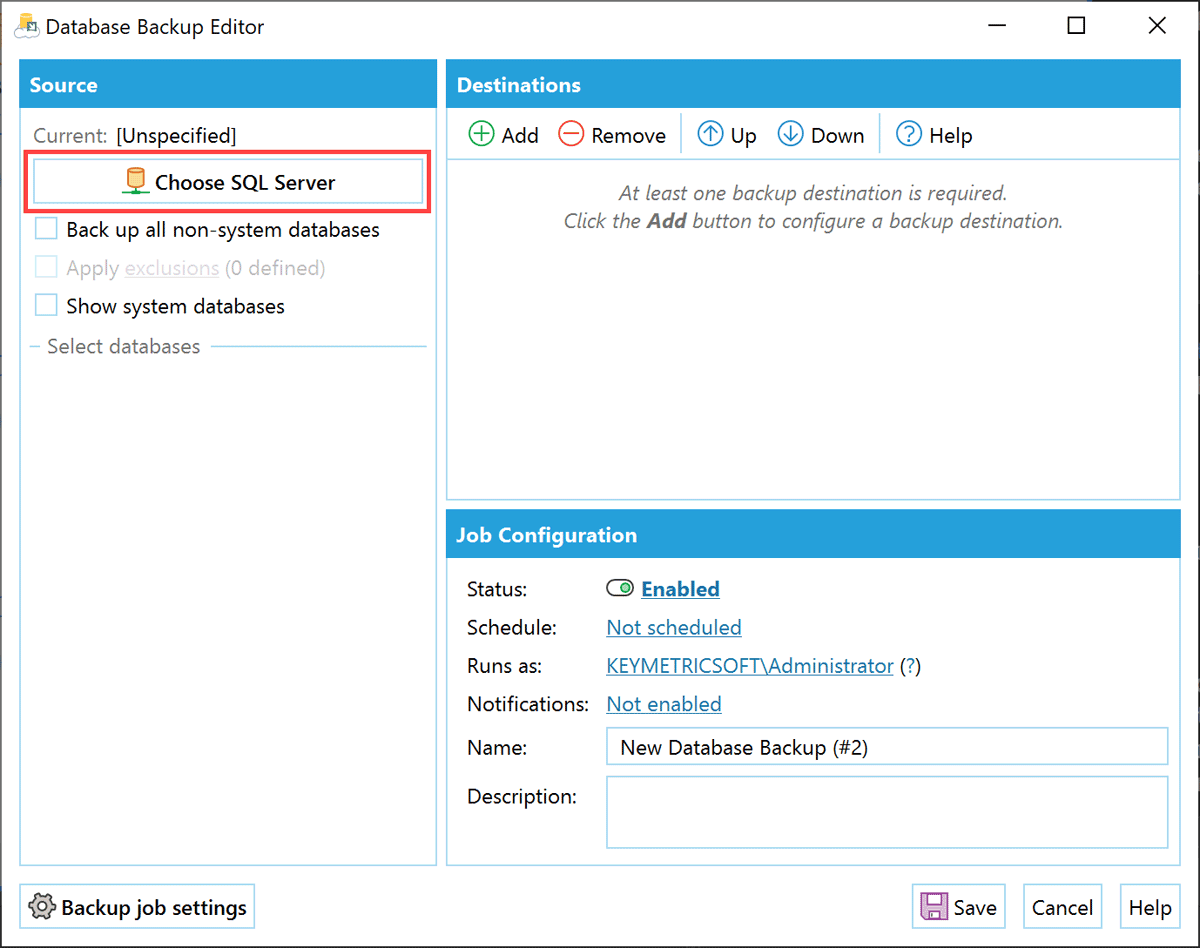
Once installed, start SQL Backup Master. Select the Backup and restore tab in the main window, then click the New database backup toolbar button. The Database Backup Editor window will appear. Click the Choose SQL Server button, as shown below.
Step 3: Connect to your Express instance
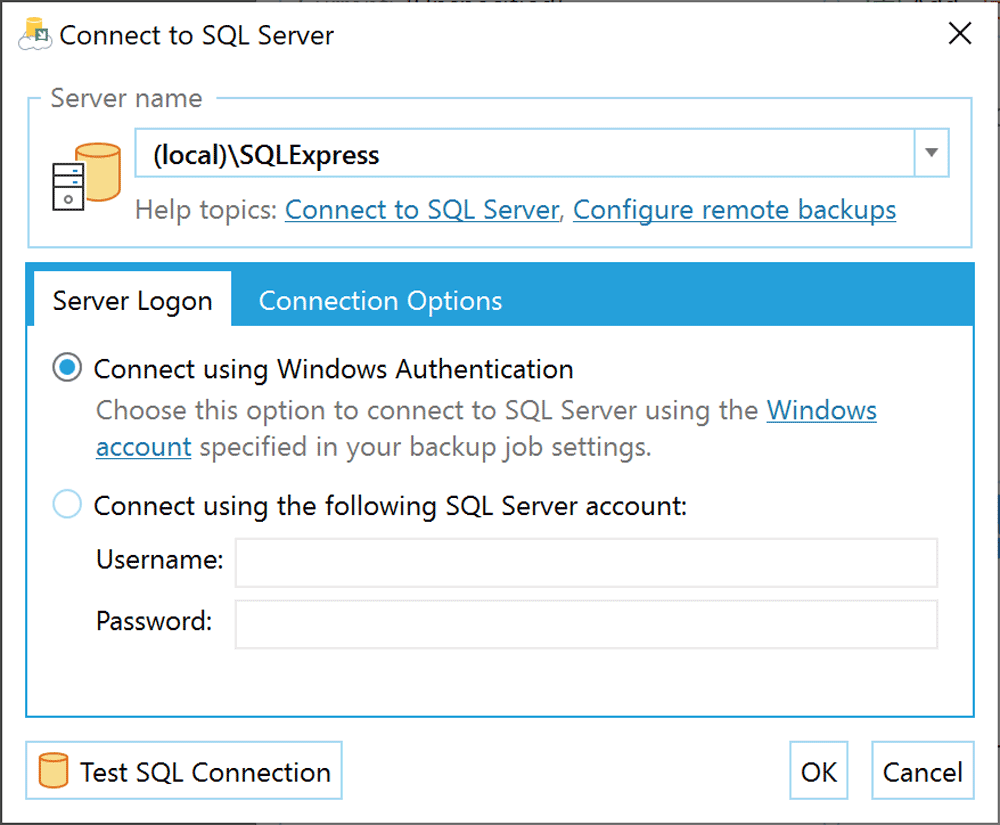
The Connect to SQL Server window will now appear. When you expand the drop-down box below the Server name field, SQL Backup Master will build a list of installed SQL Server Express instances on the local machine, as well as SQL Server instances on the network. By default, SQL Server Express installs an instance named SQLExpress, which appears as (local)\SQLExpress in the Server name drop-down list. Select the desired instance and click the Test SQL Connection button to make sure SQL Backup Master can connect. Click OK.
If the connection fails, the connecting to SQL Server help topic covers server name formats, authentication modes, and the firewall and protocol settings that most often get in the way.
Step 4: Select the databases to back up
The Database Backup Editor window will now connect to your SQL Server instance and list available databases. Select the databases you wish to back up, or select the Back up all non-system databases checkbox.
Choosing Back up all non-system databases is worth considering even if you only have one database today – anything added to the instance later is then protected automatically, rather than quietly going unbacked up.
Step 5: Add one or more backup destinations
The next step is to add one or more backup destinations to your backup job. Use the Add toolbar button below the Destinations header to begin. For more information on the types of backup destinations available (as well as their settings), please see this help topic.
You can add and configure as many backup destinations as you like within a single job. A common free-edition setup sends each backup to both a network folder or NAS for fast local restores and to Dropbox or an FTP server for an off-site copy – giving you a stronger level of backup redundancy.
Step 6: Name the job
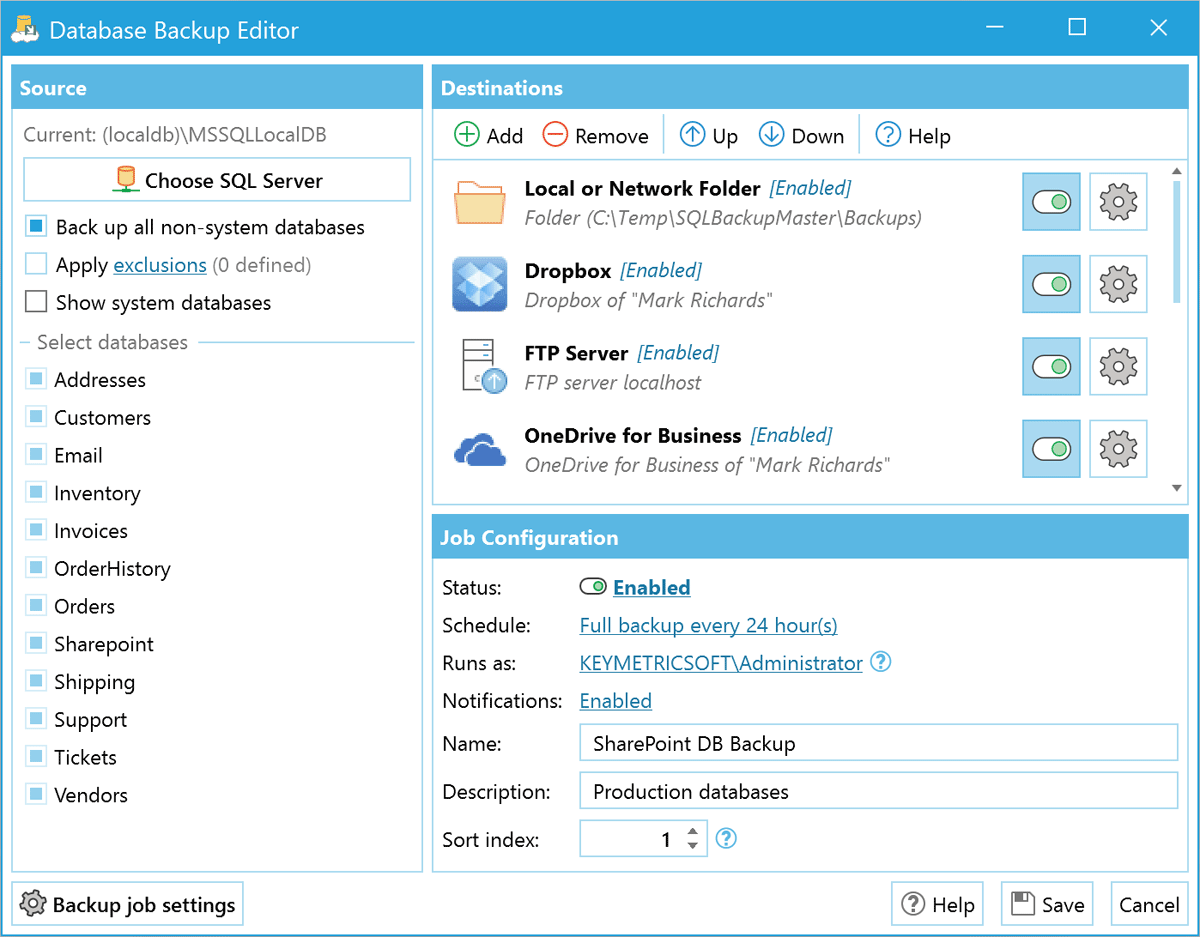
Now give your backup job a name (and optional description) in the Configuration section of the Database Backup Editor window.
Step 7: Set the backup schedule
Finally, click the hyperlink that appears next to the schedule label and specify your preferred database backup schedule. Please see this help topic for more information on how to schedule database backups within SQL Backup Master.
A nightly full backup is a reasonable starting point for most Express workloads. If losing a day of data would hurt, add differential or transaction log backups on a shorter interval – the backup types help topic explains how the three types work together, and recovery models covers the setting that determines whether log backups are available to you at all.
Congratulations, you've now created a scheduled database backup for Microsoft SQL Server Express. Click the Save button in the Database Backup Editor window to save the backup job, which will now execute according to the schedule you defined in the previous step. Backups run under a Windows service, so they continue on schedule whether or not anyone is signed in to the machine.
Compression and cleaning up old backups
Left alone, scheduled backups fill a disk. SQL Backup Master compresses each backup with zip or 7-Zip before it is uploaded, and its retention settings delete old backup files from every destination once a job has produced enough newer ones. Both are available in the free edition and are covered in the compression and encryption and backup storage help topics. Encrypting the resulting archive with AES-256 requires a professional license.
Restoring a SQL Server Express database
A backup you have never restored is a hypothesis, not a backup. SQL Backup Master writes standard
SQL Server backup files using native BACKUP DATABASE commands – there is no
proprietary container and no lock-in, so your backups remain restorable with or without this product.
The built-in recovery tool downloads a backup
from wherever it was stored and restores it to the instance you choose. If SQL Backup Master is not
available – the machine it ran on is the one you just lost, for instance – the
manual recovery topic walks through restoring
the same files with SQL Server Management Studio or a T-SQL RESTORE statement.
Supported SQL Server Express versions
SQL Backup Master supports every edition of SQL Server Express from 2005 through 2025, including Express with Advanced Services and LocalDB, and runs on Windows 8.1 and later or Windows Server 2012 R2 and later. Local and remote instances are both supported, so one installation can protect Express instances elsewhere on the network. Full details are in the requirements help topic.